How to Clean Your PC Safely (Inside and Out)
By aiden s ·
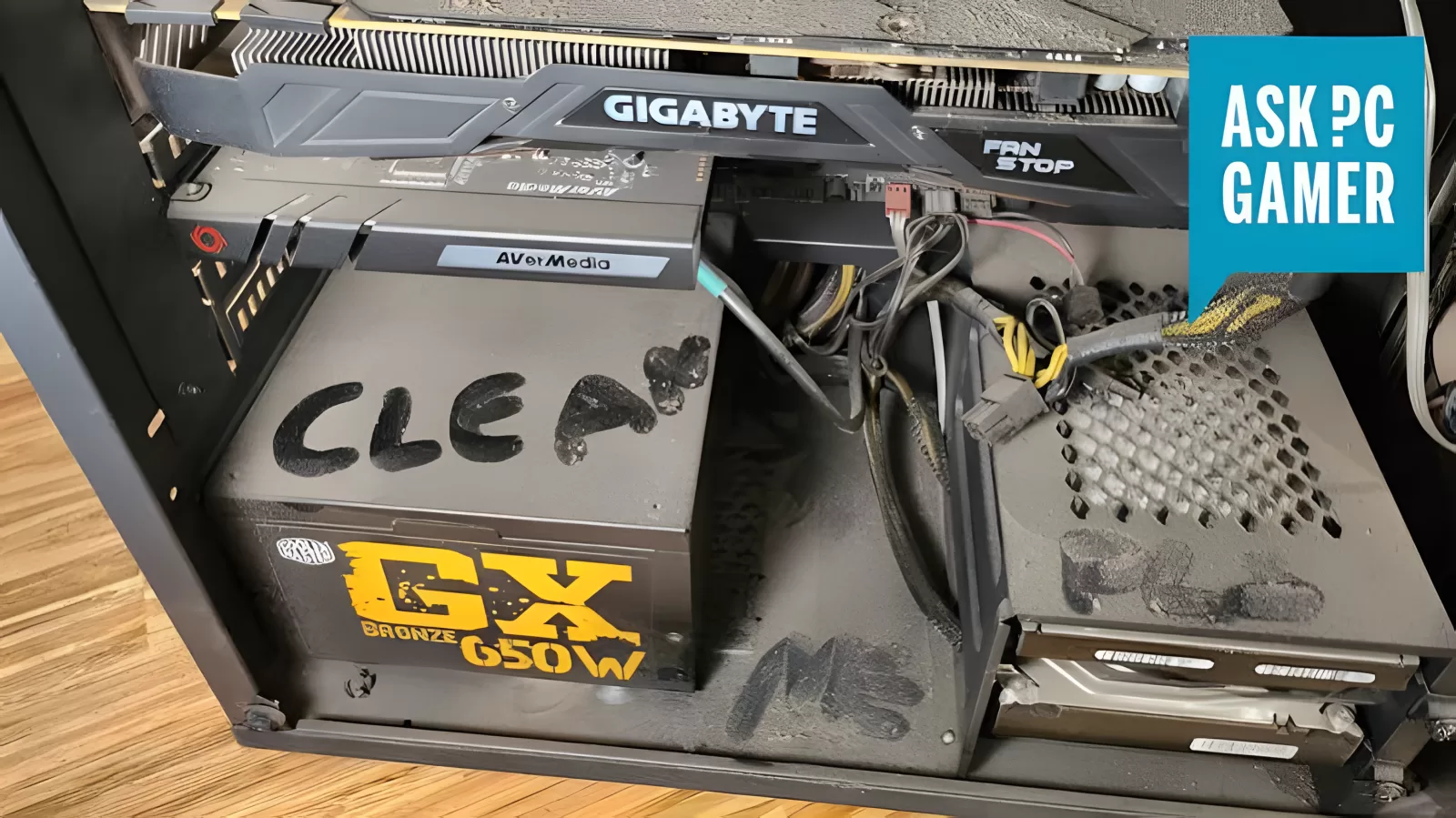
Dust is a PC's worst enemy. It clogs fans and filters, traps heat, and makes your computer louder and slower as it works harder to stay cool. The good news is that learning how to clean your PC takes about 20 minutes, and you only need to do it a few times a year. Here's how to do it safely.
How often should you clean your PC?
- Every 3 to 6 months for most homes
- Every 1 to 3 months if you have pets, smoke, or the PC sits on the floor or carpet
- Straight away if it's suddenly louder, hotter or slower than usual
What you'll need
- Compressed air (a can or an electric duster)
- A soft brush, like a clean paintbrush or makeup brush
- A microfibre cloth
- Isopropyl alcohol (90% or higher) and cotton buds, for stubborn grime
- A Phillips screwdriver, if your side panel uses screws
Step 1: Power down and unplug
Shut down Windows, switch off the power supply using the switch on the back, and unplug the power cable. Press the power button once to drain any leftover power.
Step 2: Move it somewhere you can make a mess
Dust goes everywhere, so take the PC outside or to a well-ventilated room if you can. Put it on a table, not the carpet.
Before you touch anything inside, touch a bare metal part of the case to discharge any static electricity from your body.
Step 3: Clean the dust filters
Most cases have removable dust filters on the front, top and bottom. Slide or pop them out and:
- brush or blow the dust off, or
- rinse them under the tap if they're plain mesh, then let them dry completely before refitting.
Step 4: Blow out the inside
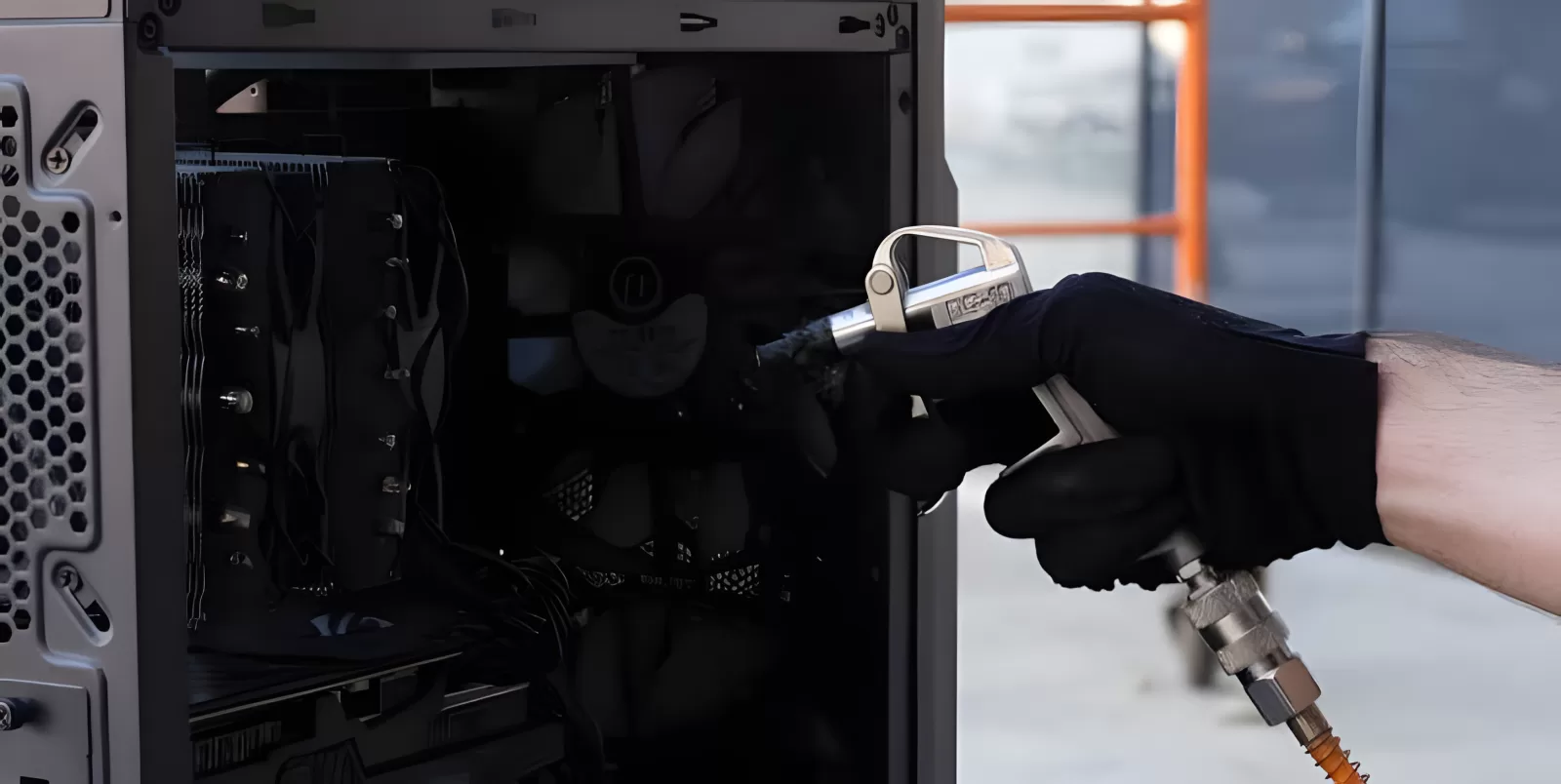
Remove the side panel. Using short bursts of compressed air, blow dust out of:
- the CPU cooler, including its fins and fan
- the graphics card fans and heatsink
- the case fans
- the power supply vent, from outside the case (don't open the power supply)
Keep the can upright. Tilting it can spray freezing liquid onto parts.
Step 5: Tackle stubborn grime
Use a soft brush to loosen caked-on dust from heatsink fins and fan blades. For sticky marks on fan blades, use a cotton bud lightly dampened with isopropyl alcohol. Let everything dry fully before switching back on.
Step 6: Clean the outside
Wipe the case with a slightly damp microfibre cloth. For glass panels, use a little glass cleaner on the cloth, never sprayed directly onto the PC. Clean your keyboard and mouse while you're at it.
Step 7: Reassemble and test
Refit the filters and side panel, plug everything back in and switch on. Listen for the fans spinning up normally. It should run cooler and quieter than before.
Signs your PC needs more than a clean
Cleaning fixes a lot, but some problems need a closer look:
- Temperatures still high after cleaning. The thermal paste between the processor and cooler may have dried out. It usually needs replacing every few years.
- Grinding, clicking or rattling noises. A fan may be failing.
- Random shutdowns under load. This can be overheating or a failing power supply.
- A burning smell. Switch off immediately and don't use the PC until it's been checked.
If your PC is getting on a bit and needs more than a clean, it might be time for an upgrade. Our PC upgrade guide shows what to upgrade first, or you can sell your old PC and put the money towards a new one.
Summary
To clean your PC, power it down, take it somewhere you can make a mess, clean the dust filters, then blow the dust out of the fans and heatsinks with short bursts of compressed air while holding the fans still. Do it every few months and your PC will run cooler, quieter and last longer.
Thinking about a new PC instead? Get a free recommendation based on what you use it for.